Local Game
Setting up the game
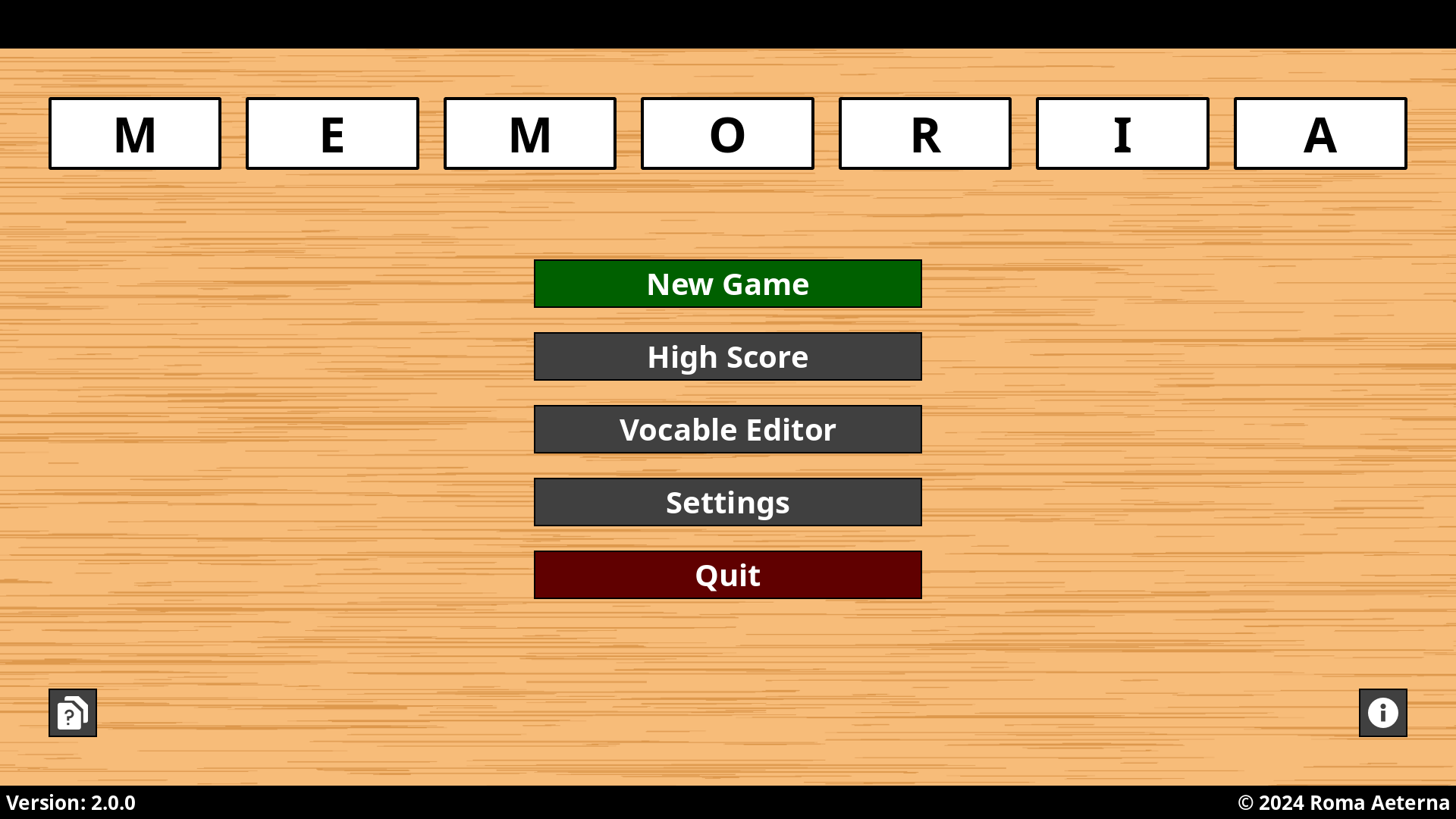
After starting the game you’ll see the main window of the application. Click the button “New Game” to open the setup screen.
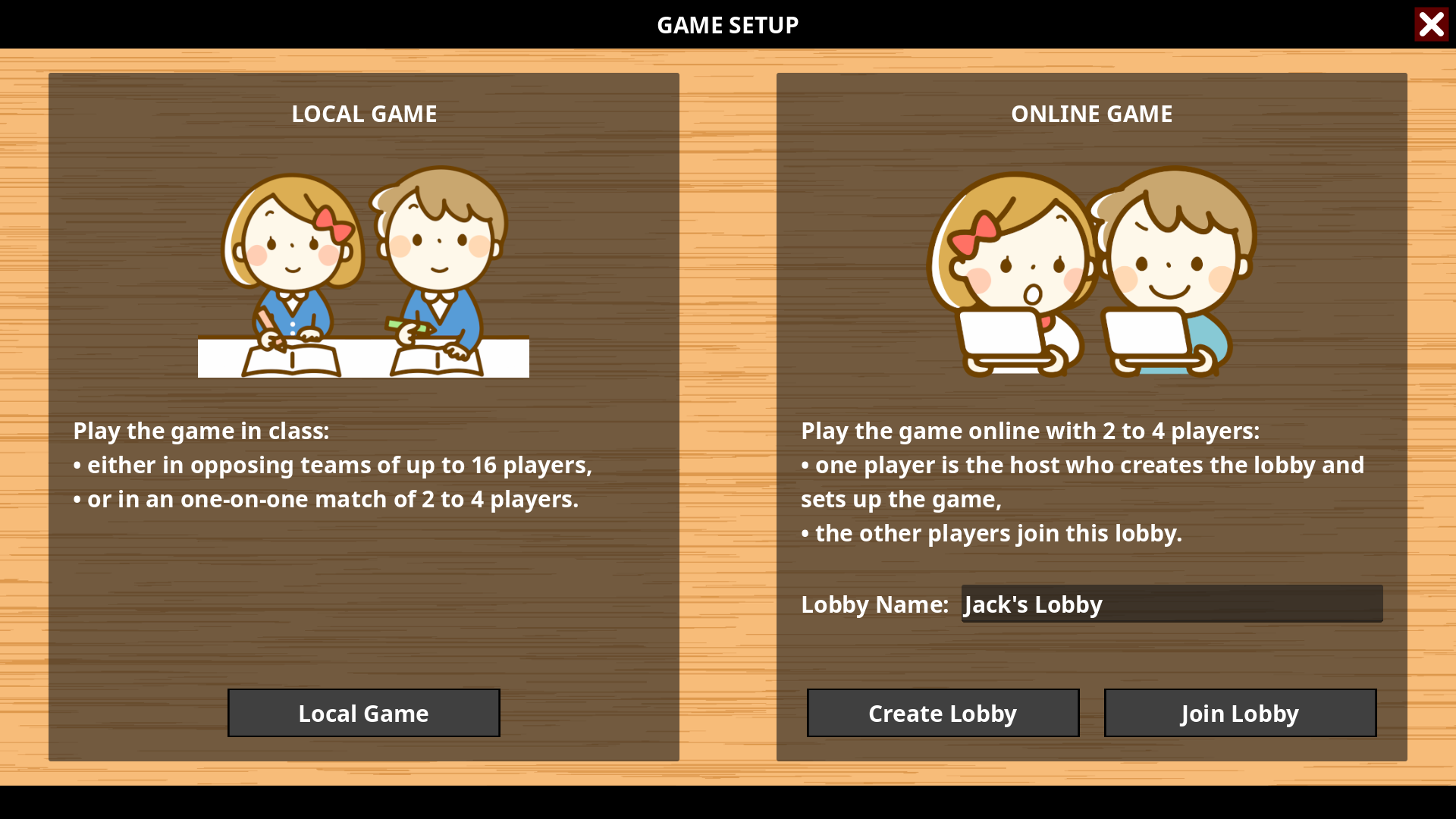
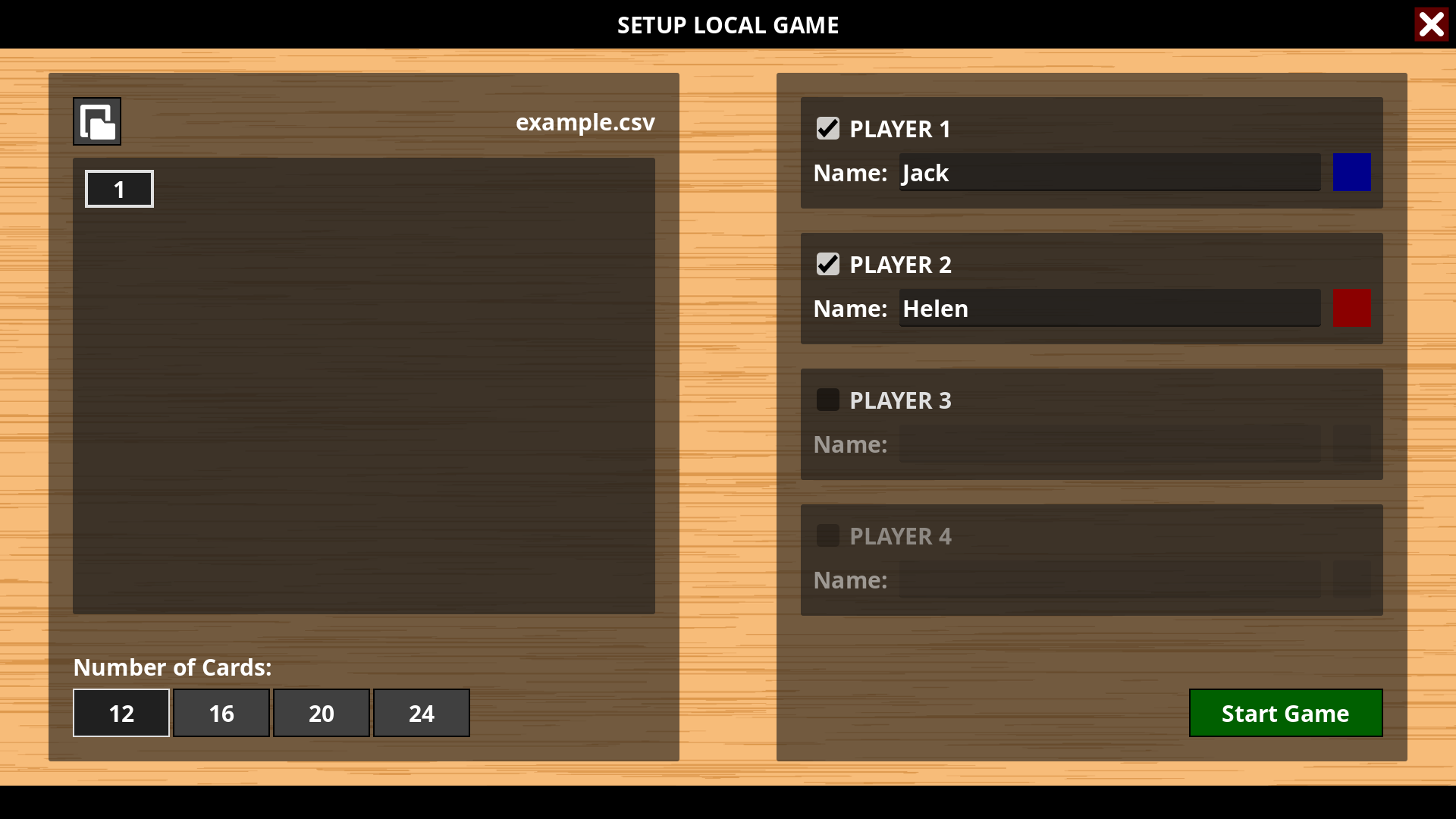
Select “Local Game” on the left-hand side.
First click on the button at the top left and navigate to the file you want to open. Now you can choose the units you want your students to repeat.
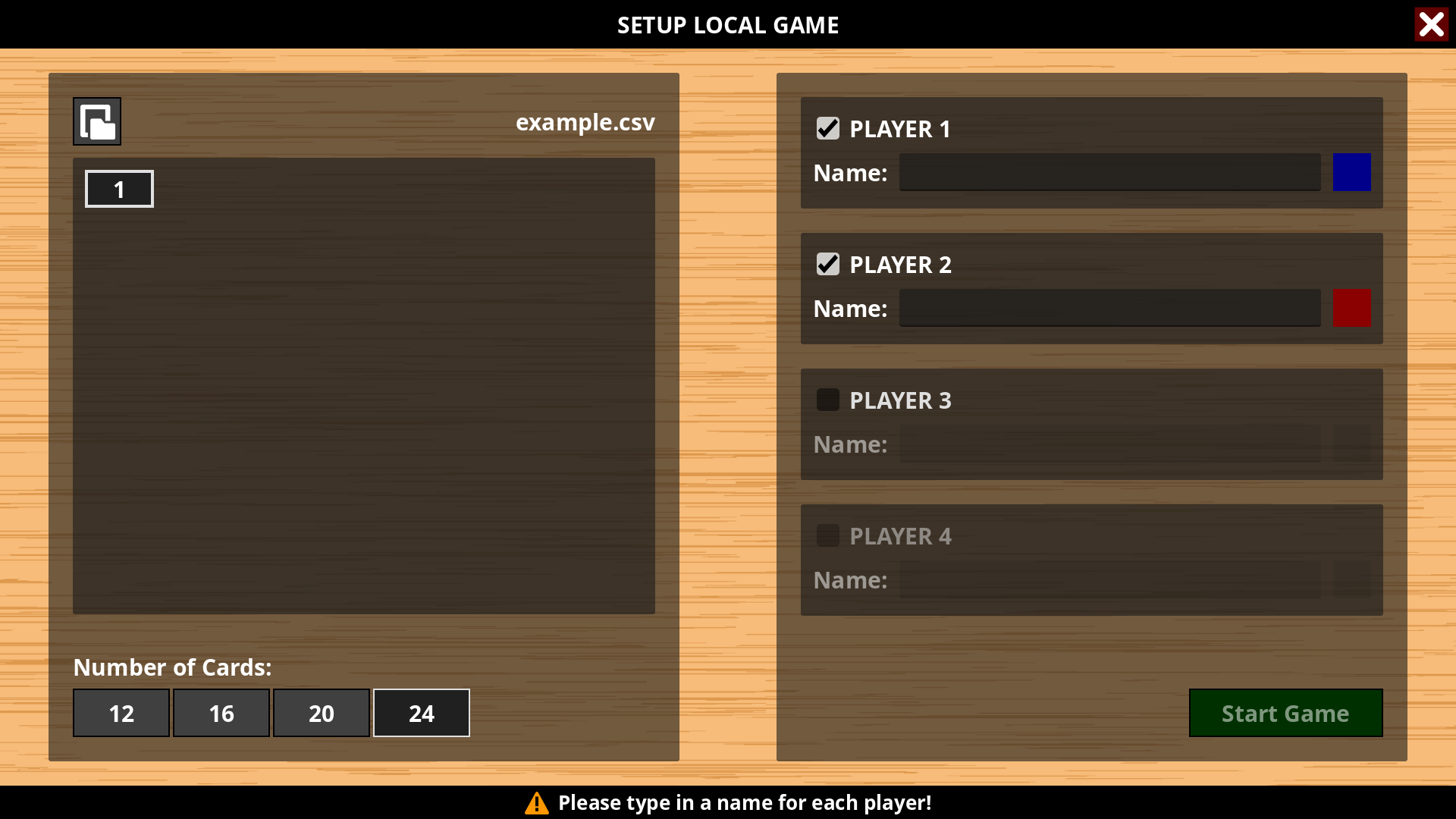
Memoria can be played by up to four students or teams. Select the number of players by clicking on the corresponding check boxes. Type in the name of each player and change the color if you want. Finally select the number of vocable cards and press the button “Start Game”.
Playing the game
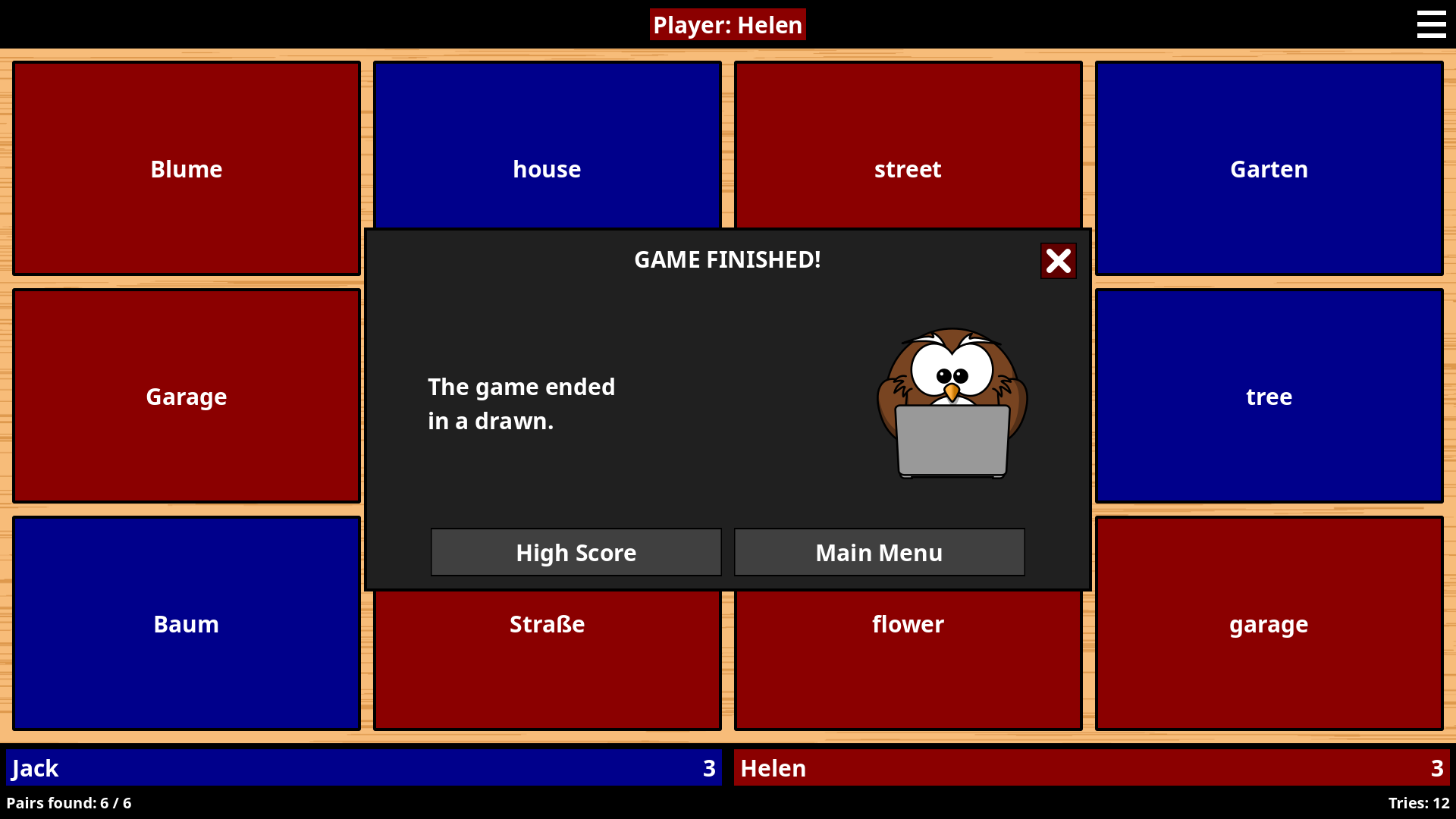
You’ll find the name of the active player in the header bar, the score and statistics at the bottom of the window.
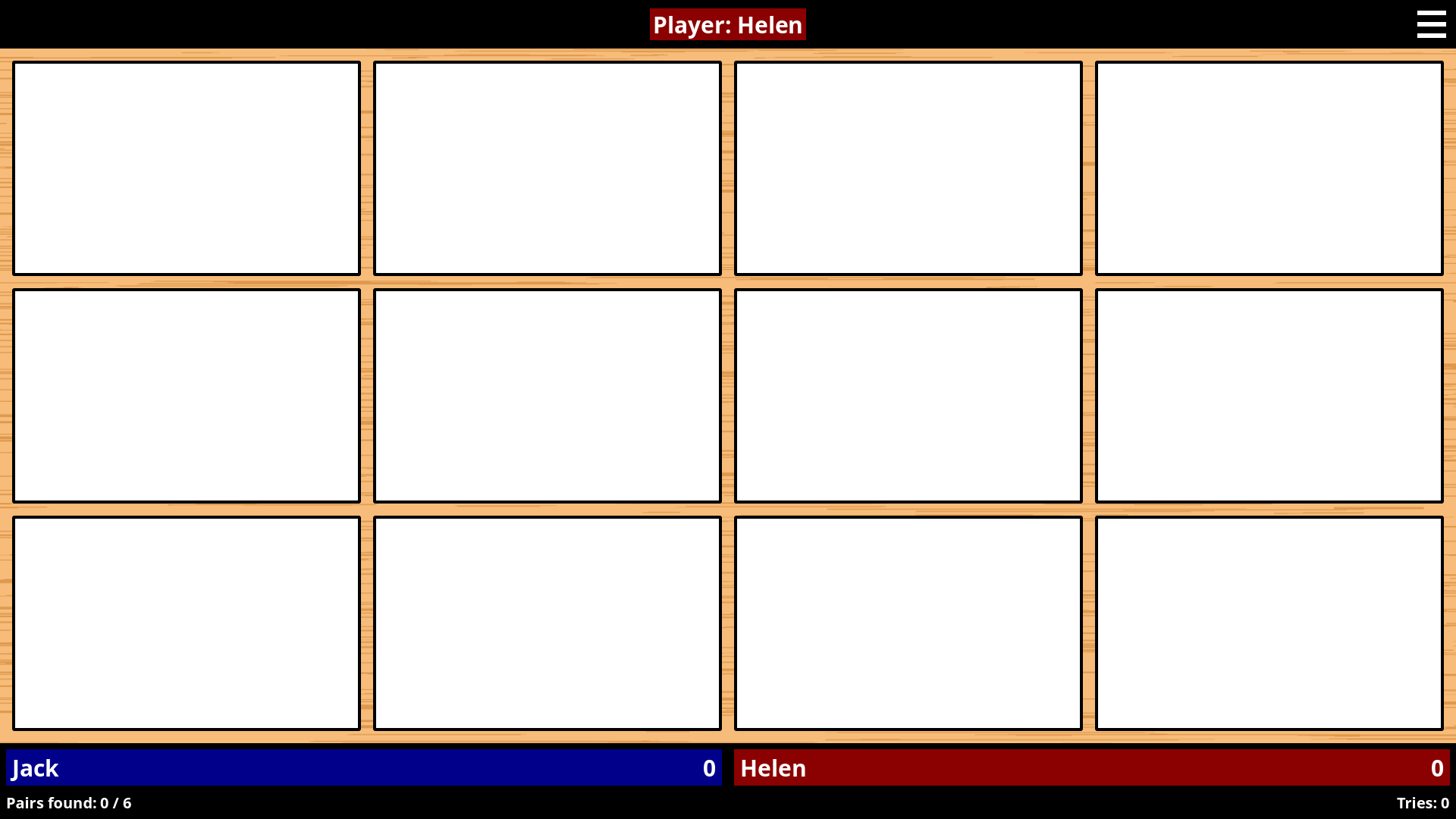
Try to find a vocable and its translation by clicking on two white rectangels. If you found a matching pair, the rectangels are highlighted by the player’s color and you can go on. Otherwise it’s the turn of the next player.
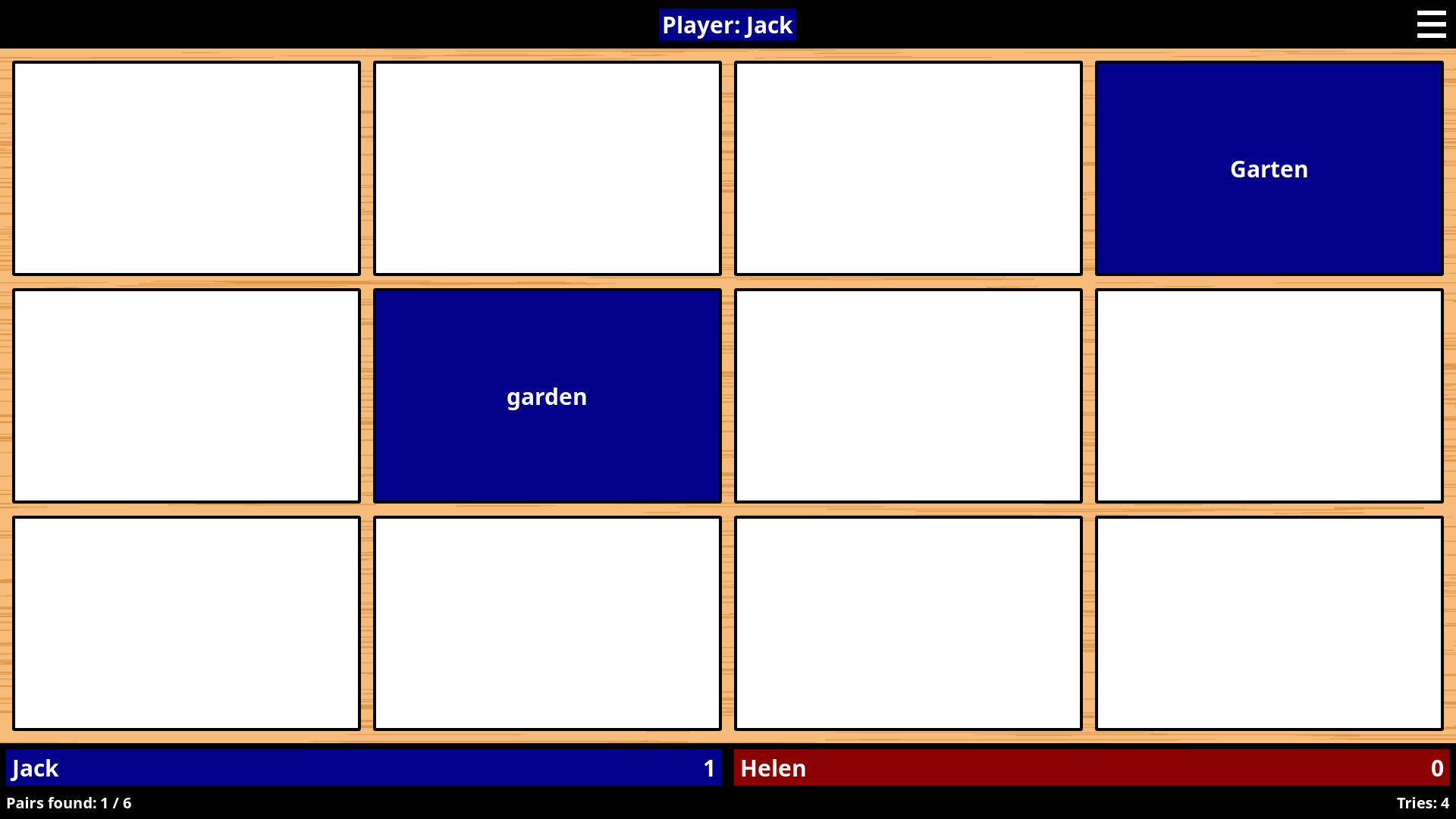
The player who found most matching pairs wins the game.